
From box to first visitor, step by step.
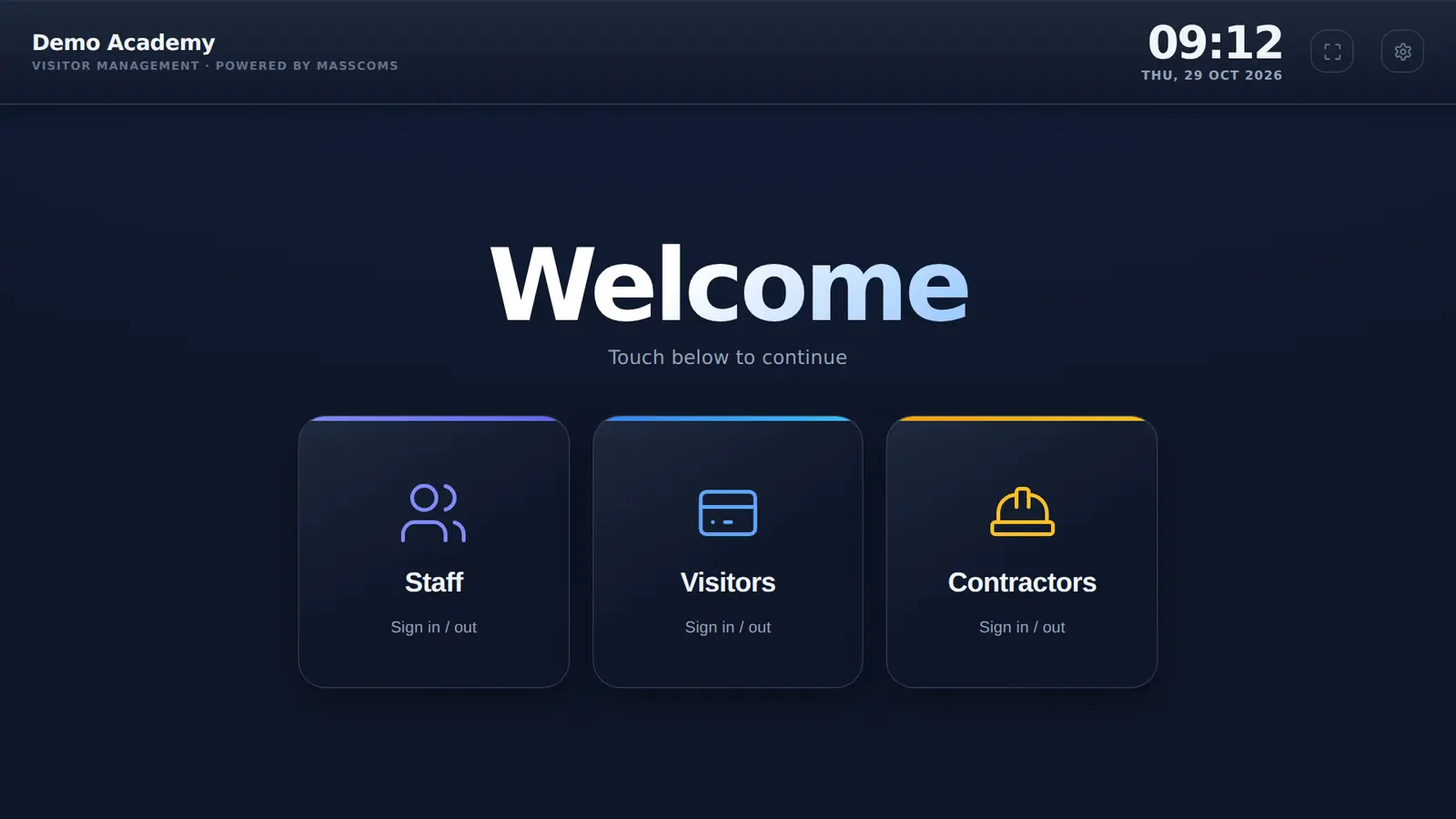
Pick your device below. Each route ends in the same place: a locked kiosk at reception and an admin page where you set the questions.
How do you set up MassVisit?
Install the kiosk app on an Android tablet (or enrol a browser), sign in once with a Mass Coms admin account, then use the admin page to set the location, staff list, rules and questions. Run a drill to check it. No server to install and no passwords stored on the device.
- Who can set up
- Mass Coms admin or super admin
- Devices
- Android, Fire OS, enrolled browser
- Reconfigure
- Tap top-left corner 5 times
- Offline
- Retries every 8 seconds
- Checked
Android tablet or touch panel.
The recommended route. The app locks the device to the kiosk.
- 01
Install the app
Install the MassVisit kiosk app. On the device it is listed as MassComs Visitor Kiosk.
- 02
Make it the Home app
Settings, Apps, Default apps, Home app. On Android 10 and later this is needed for it to start after a restart.
- 03
Sign in once
Open the app and sign in with a Mass Coms admin or super admin account. Your organisation fills in.
- 04
Printer and start
Leave the printer IP blank to find it, or type it. Optionally add a badge logo link. Tap Save and Start.
Fire OS device.
The same app, installed a different way.
- InstallUse the Downloader app to install the MassVisit kiosk app.
- Set upOpen it and follow the same admin sign-in as on Android.
- Reconfigure laterPress the remote's MENU button five times, then sign in as an admin.
- BadgesPrints to a Brother QL-820NWB on the same Wi-Fi, like the Android app.
Any other browser.
For a device where you cannot install the app.
- Open your kiosk pageGo to your organisation's kiosk page on visitor.masscoms.com.
- Enrol the browserAn admin signs in on that device. The browser gets its own credential, which can be revoked on its own.
- BadgesPrint through the browser's print dialog to a printer you choose.
- LimitsThe browser is not locked down like the app. Use the app where you can.
Then, in the admin page.
Everything else is set from a desk, not the tablet.
| Setting | Where | Why |
|---|---|---|
| Location | Site, building, floor and room | So the kiosk shows the right evacuation route |
| Branding | Logo and organisation name | Shown on the kiosk and the registration page |
| Questions | Contractors, car registration, reason for visit | All off until you switch them on |
| Rules | Visitor rules, contractor rules, privacy notice | Ticked before sign-in, time stored |
| Staff | Name, email and optional photo | For staff sign-in and host emails |
| Notifications | Arrival and registration emails, reception email | So hosts know their visitor is here |
| Emergency messages | SMS (Twilio) and email (SMTP) | To reach people on site in an incident |
Finish with a drill.
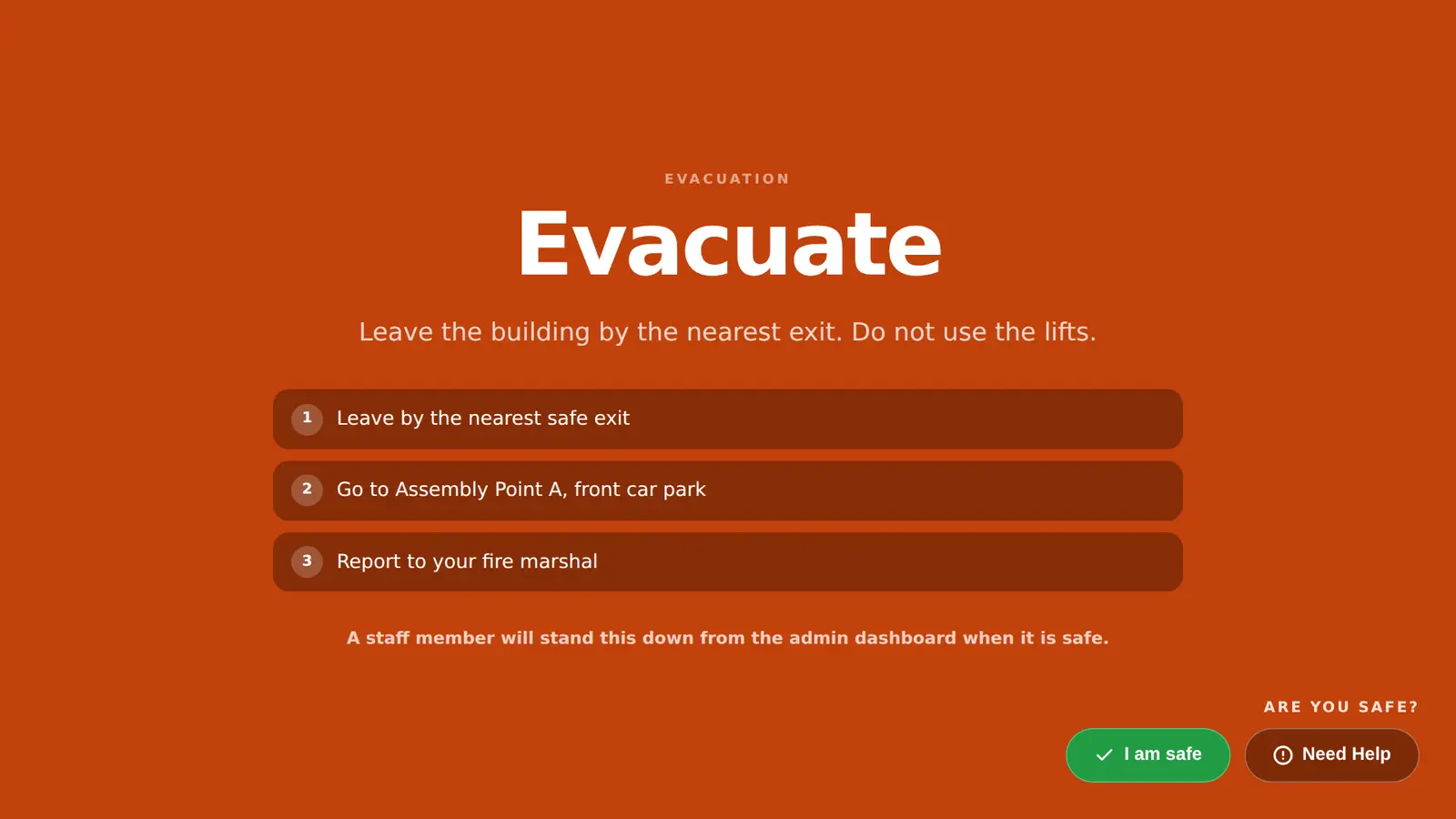
Sign a few people in, print a badge, pre-register a test visitor and sign them in with the code. Then declare a practice incident in Mass Coms and check the alert on the kiosk and the list your team sees.
- Check the badge prints at the right size
- Check the host email arrives
- Check the on-site list in roll call
Setup questions.
Every question answeredHow do I set up the MassVisit kiosk on an Android tablet?
Install the MassVisit kiosk app (listed as MassComs Visitor Kiosk on the device), set it as the Home app, open it and sign in with a Mass Coms admin account. Your organisation fills in, the printer is found on the network, and you tap Save and Start.
Who can set up a kiosk?
Someone with a Mass Coms admin or super admin account. Other roles are turned away at the setup screen.
How do I change a kiosk's settings after setup?
Tap the top-left corner five times quickly, or press the remote's MENU button five times on a TV box, and sign in as an admin.
Can I use a browser instead of the app?
Yes. Open your kiosk page on visitor.masscoms.com on the device and sign in as an admin to enrol that browser. Badges then print through the browser's print dialog.
Want us to walk you through it?
In a demo we set up a kiosk with you, from the first sign-in to a test drill.