
The hardware is a tablet and a label printer.
Run the kiosk on an Android tablet or touch panel at reception. Add a Brother label printer for badges. We confirm the exact devices with you before you buy anything.
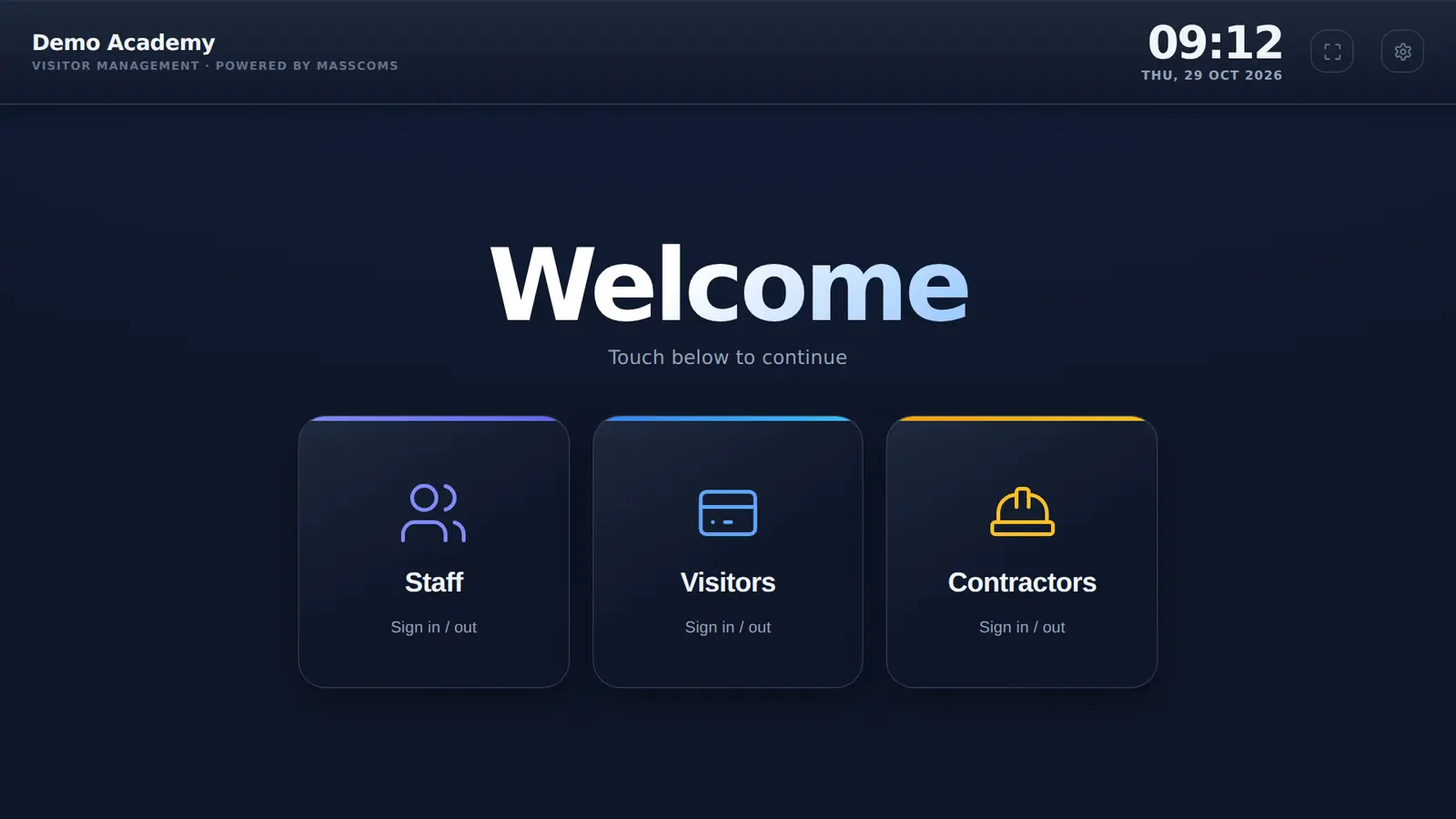
What hardware does MassVisit need?
An Android tablet or touch panel running the MassVisit kiosk app (listed as MassComs Visitor Kiosk on the device), a network connection, and optionally a Brother QL-820NWB label printer on the same Wi-Fi. A browser on an enrolled device can also run the kiosk page.
- Tablet
- Android 5.1 or later
- Printer
- Brother QL-820NWB, optional
- Network
- HTTPS, online only
- Labels
- 86 x 60 mm
- Checked
Where the kiosk runs.
Three ways to put it on the desk.
| Device | How | Badge printing |
|---|---|---|
| Android tablet or touch panel | MassVisit kiosk app, locked full screen | Brother QL-820NWB over Wi-Fi |
| Fire OS device | The same app, installed with the Downloader app | Brother QL-820NWB over Wi-Fi |
| Other enrolled browser | Your kiosk page on visitor.masscoms.com, enrolled by an admin | Through the browser's print dialog |
The kiosk app and the MassCasts signage app are separate, so both can sit on one device. A desktop build for Windows and Mac also exists; ask in your demo whether it suits your reception.
Built to sit at reception unattended.
Once it is set up, nobody needs to touch the tablet. It survives restarts and power cuts, and nobody at the desk can wander out of it.
- Full screen, and the screen stays awake
- Back and Home buttons cannot leave the kiosk
- Starts itself after a restart, once set as the Home app
- Branded offline page that retries every 8 seconds
- Each kiosk has its own credential, revocable on its own
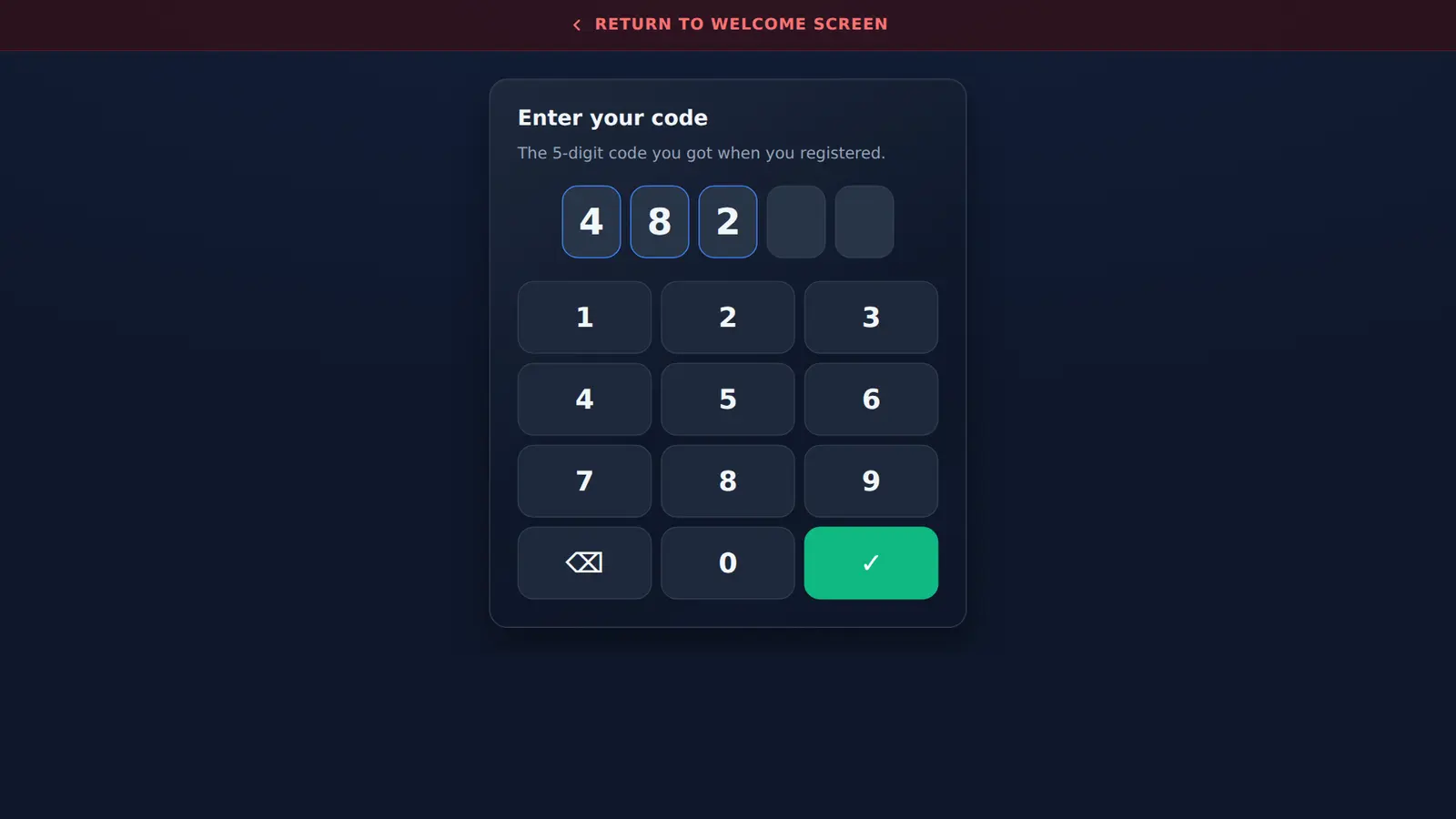
From box to first visitor.
Most receptions are set up in one sitting. Steps 3 to 5 happen in the admin page, not on the tablet.
- 01
Install the app
Install the MassVisit kiosk app (MassComs Visitor Kiosk on the device) and set it as the device's Home app.
- 02
Sign in once
An admin signs in with their Mass Coms account. Add a printer IP or leave it blank to find it.
- 03
Set the location
Pick the site, building, floor and room, so the right evacuation route shows.
- 04
Add staff and rules
Upload your logo, add staff, write your rules and copy the pre-registration link.
Then run a drill: sign a few people in, print a badge and declare a practice incident. To change a kiosk later, tap the top-left corner five times and sign in as an admin.
Hardware questions.
Every question answeredWhat tablet do I need for the visitor kiosk?
An Android tablet or touch panel running Android 5.1 or later, with the MassVisit kiosk app (listed as MassComs Visitor Kiosk on the device). We confirm the exact device with you before you buy.
Which label printer works with it?
A Brother QL-820NWB on the same Wi-Fi. The Android app finds it on the network, or you can enter its IP address in setup.
Does the kiosk start by itself after a power cut?
Yes, once the app is set as the device's Home app. On Android 10 and later that step is required for it to start on boot.
How do we change a kiosk's settings later?
Tap the top-left corner five times quickly and sign in with a Mass Coms admin account. There is no way into setup without an admin sign-in.
Not sure which tablet to buy?
Tell us about your reception in a demo and we will confirm the device, mount and printer before you order anything.